
A Browser Window, a Beige Keyboard, and Too Many Small Jobs
Picture a desk somewhere between 2001 and 2004: a beige keyboard pushed close to a CRT monitor, one browser window doing too much, several pop-up or document windows stacked behind it, and a download dialog parked over the page like a small dare.
The bookmarks menu is not tidy. It is a scratchpad. A user saves links for later, searches a page for one phrase, checks a feed link from a favorite site, and waits on a compressed file that may or may not finish before the connection drops. That crowded window is the right starting point because many early web chores collided there before browsers absorbed them into cleaner controls.
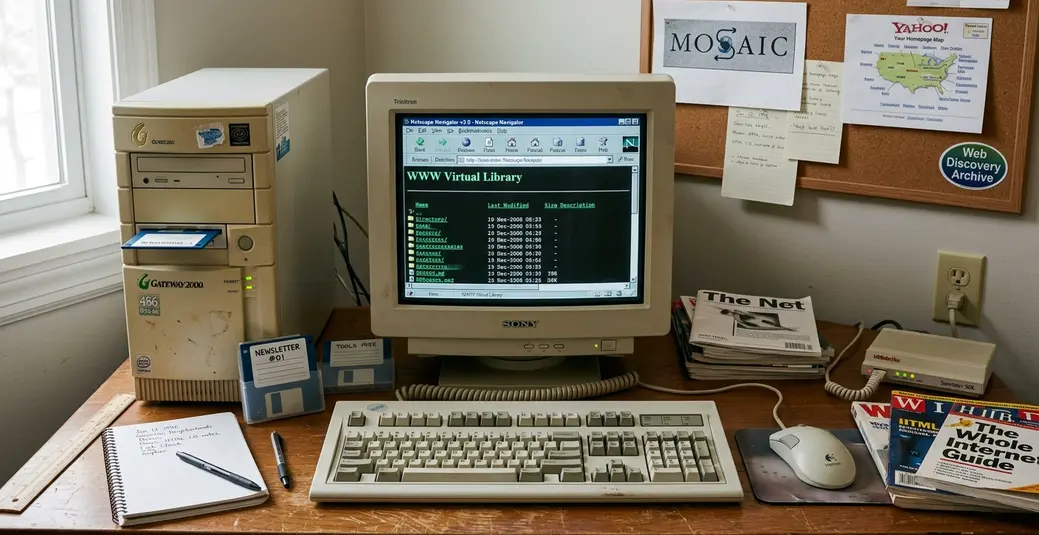
Browser utilities from this period should not be treated only as nostalgia objects. The good ones were small productivity systems. They removed a repeated click, kept a research trail intact, or made a fragile action recoverable.
This archive follows those patterns: tools that changed how people collected, searched, read, saved, and repeated work online.
Criteria for Selection
The list favors utilities that lived inside the browser or directly beside it. Broad office suites, full desktop organizers, general media players, and standalone design programs stay outside the frame unless their main value appeared during browsing itself.
The selection test is practical. A utility belongs here if it reduced repetitive action, helped people navigate a growing web, influenced a later browser feature, and still makes sense to someone using modern digital tools and productivity habits. Bookmarklet commands map to browser shortcuts. Session tools map to saved tab groups. Feed readers map to monitored sources. Download queues map to download shelves and routed folders.
Important: This archive favors influential utility patterns over exhaustive coverage, so obscure regional toolbars, niche academic add-ons, and one-site helper scripts may be absent even when they mattered deeply to a small community.

The Utility Patterns Worth Saving
1. Bookmarklets: Tiny Commands Hidden in the Bookmarks Bar
The smallest browser utility was often just a bookmark whose address began with a JavaScript command rather than a normal web address.
That sounds plain until the placement is considered. The command lived where a destination usually lived, often on the bookmarks bar, so one click could act on the current page. No large helper package. No settings panel. Before extension marketplaces became routine in the mid-2000s, copy-pasting a small script into a bookmark was a remarkably direct way to customize the browser.
Common jobs were specific: resize a page view, translate selected text, validate markup, send the current URL to a saving service, clip a citation, strip page clutter, or change contrast and font display. A designer checking old markup could keep a validator bookmarklet beside ordinary web finds & curiosities and use both without changing context.
Field Note: A bookmarklet that relies on page scripting can stop working on locked-down sites, complex web apps, or pages with strict security policies. The pattern remains elegant, but the page gets a vote.
2. Search Toolbars: The Web Search Box Before the Omnibox
Before integrated address and search behavior became standard, lookup work had a longer rhythm: open or reuse a search homepage, place the cursor in the page search box, type the query, wait for results, then get back to the original page or open results in separate windows.
Search toolbars compressed that routine into the browser frame. A persistent search field sat above the page, often paired with highlighted terms, quick page search, cached-page access, related-page commands, and query shortcuts. For readers moving between newsletter archive entries, product pages, and forum posts, that saved enough friction to feel like a new habit.
But the same pattern also made browser chrome messy. Stacked bars, duplicated search boxes, promotional buttons, and unclear settings could slow lookup work even when the original search field was useful. The legacy is not only the box. It is also the lesson that utility controls need a place to live without stealing the whole window.
3. Tab Managers and Session Restore: Keeping Research Open
Six to twelve separate browser windows scattered across a desktop made research feel more fragile than it needed to be.
Each window held one source, one search result, or one document. A crash could erase the trail. A wrong close button could wipe out the best lead of the afternoon. Tabbed browsing and session restore changed the work from a loose chain of windows into a recoverable workspace.
The useful capabilities were not glamorous: open multiple pages inside one window, restore a closed tab, reopen the previous session after a restart, save a set of pages as a session, and group research pages by topic. Students comparing source material, writers collecting references, educators preparing reading lists, and archivists checking mirrors of a page all benefited from the same basic move.
A sturdy setup used one group for primary sources, one for background reading, and one for pages already clipped or downloaded. At the end, only the completed group closed. The unfinished trail stayed available for the next pass.
4. Download Managers: Making Slow Connections Less Fragile
Download managers mattered because a file transfer could consume attention for a long time and still fail near the end.
The early pain points were ordinary and maddening: interrupted connections, large compressed archives, software installers, media files, unclear progress bars, duplicate file names, and repeated restarts after a dropped line or browser crash. A download manager turned that uncertainty into a small queue with rules.
Pause, resume, and retry from a partial file were the headline features when the server allowed them. Queueing several files overnight or during off-hours helped too. Yet the quiet productivity gain was file handling: assign a folder before the download begins, rename the file as it arrives, and keep project material out of the general pile.
Bottom Line: Download managers mattered most when connections were fragile and files were costly to restart. On fast stable connections, the same pattern shifts toward naming, routing, and recovery.
5. RSS Readers and Live Bookmarks: Letting Sites Come to You
RSS inverted a common browsing routine. Instead of trusting memory to revisit every useful site, a reader could track headlines, excerpts, timestamps, and links from many sources in one place.
Browser-adjacent versions made the idea feel even closer to ordinary navigation: feed-reader panels, subscription buttons, bookmark-like folders that updated when a source published, and live bookmark folders that exposed recent items without a manual homepage visit. In Mozilla’s Live Bookmarks documentation, the feed sits inside browser behavior rather than as a separate reading ritual, which captures the pattern neatly.
A practical morning workflow was simple. Check one feed folder, open five to ten promising items in tabs, clip or bookmark only the useful ones, and leave the rest unread. That suited multimedia & web tech blogs, local culture pages, small creative & learning resources, and the sort of personal sites that published irregularly but were worth watching.
6. Form Fillers and Password Helpers: Reducing Repetitive Typing
The web made tiny typing chores multiply.
Name, street address, email address, phone number, username, password, shipping address, billing address, and forum registration details appeared again and again. Form fillers and password helpers addressed the smallest repeated tasks, which is exactly why they became valuable. A saved identity could complete routine fields. A remembered login could spare another trip to a notebook or text file.
The operational risk was just as concrete. Shared family computers, unlocked office machines, plain browser profiles, and weak master-password habits made convenience more exposed than many users realized. Modern password managers changed the expected controls: review-before-fill prompts, device-level unlocks, encrypted vaults, per-site password generation, and a clear way to inspect or delete stored entries.
The pattern is worth remembering because the goal was never just speed. It was controlled repetition.
7. Web Clippers and Scrapbooks: Saving More Than a Pointer
A bookmark remembers where something was. A clip preserves enough of the thing itself to work with later.
That distinction mattered on a web where pages changed, disappeared, moved, or lost supporting files. Web clippers and scrapbook tools commonly saved full pages, selected text, images, source links, page titles, timestamps, user notes, and sometimes local copies of stylesheets or images. Students used them for source folders. Bloggers collected reference snippets before drafting. Educators saved examples for lessons. Archivists captured volatile pages before edits or disappearance.
The best clipping systems demanded a little discipline. A useful saved item needed a title, source URL, capture date, short note, and next action. Without that, clipped pages became as hard to revisit as an overgrown bookmarks folder.
Field Note: Treat clipping as a working copy, not a dumping ground. The note beside the clip often matters more than the capture itself.
A Copyable Modern Utility Belt for One Research Afternoon
Here is the old utility logic translated into a modern 3- to 4-hour research block for a writer gathering early web design references.
Create one bookmarks folder before opening research tabs. Name it Today’s Web Finds. Every temporary discovery goes there first, so the bookmarks bar does not become the scratchpad again.
Add three quick actions to the browser: save current page to notes, clean the page for reading, and send the current URL to a reference list. These can be shortcuts, extension buttons, or bookmarklet-like commands. The form matters less than the one-click placement.
Pin one recurring discovery source. Use a feed reader view, a newsletter archive, or another monitored source so new material enters through a channel instead of random memory.
Create a project download folder before saving files. Use a name such as early-web-design-refs--2026-07-11. Put images, PDFs, screenshots, and page archives there as they arrive.
Open source pages in three tab groups: primary examples, background reading, and already captured. Move a page to the captured group only after it has been clipped, bookmarked, or downloaded.
At the end of the block, close the captured group, leave the background group saved as a session, and keep the folder Today’s Web Finds as the handoff list for tomorrow’s first pass.